Using WireLens on Android
A tour of WireLens for Android after setup: capture, the Traffic lists, choosing what to decrypt, reading a request, the tools, breakpoints from the notification, and sessions.
This page picks up where setup ends.
The four tabs#
| Tab | What is there |
|---|---|
| Traffic | The live capture, as Domains (or Apps) and Requests, with search, filters and the capture button |
| Compose | Build a request, import a cURL command or a Postman collection, and send it |
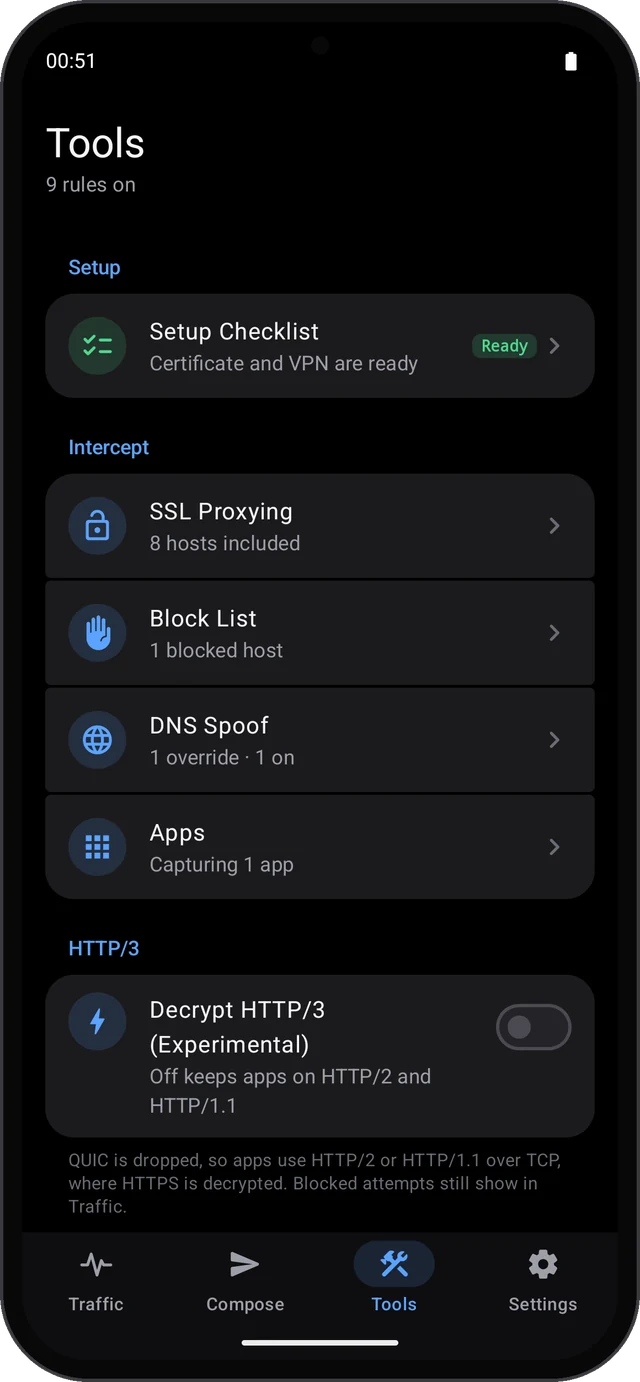
| Tools | The Setup Checklist, SSL Proxying, Block List, DNS Spoof, Apps, the HTTP/3 switch, Rewrite, Map Local, Map Remote, Scripting, No Caching, Network Conditions, Breakpoints and Waiting Breakpoints |
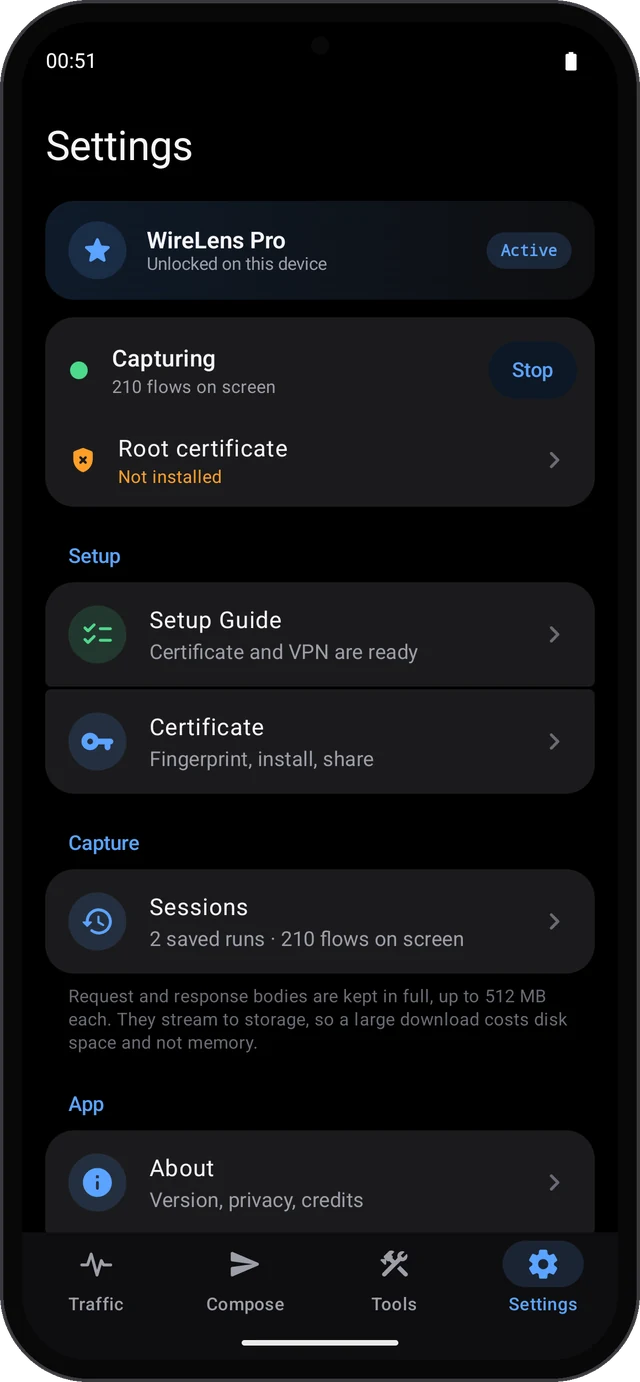
| Settings | Pro, capture status, the Setup Guide, the certificate, sessions, appearance and language, support |
Start and stop capture#
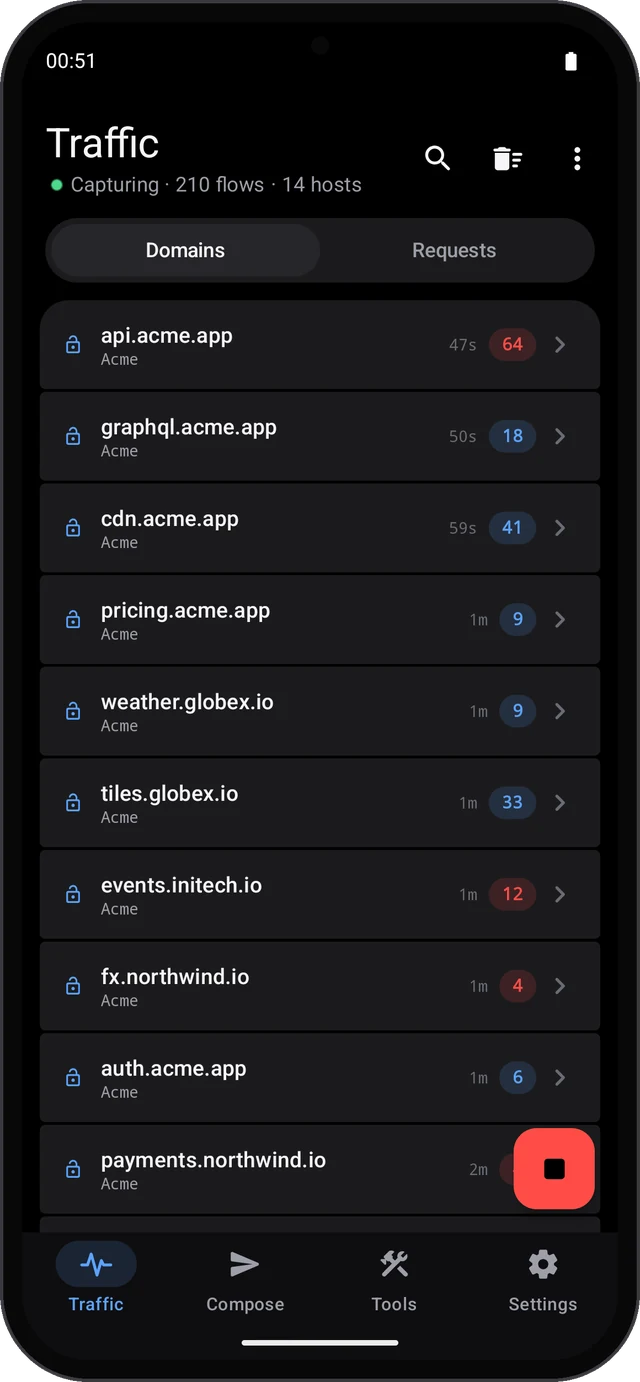
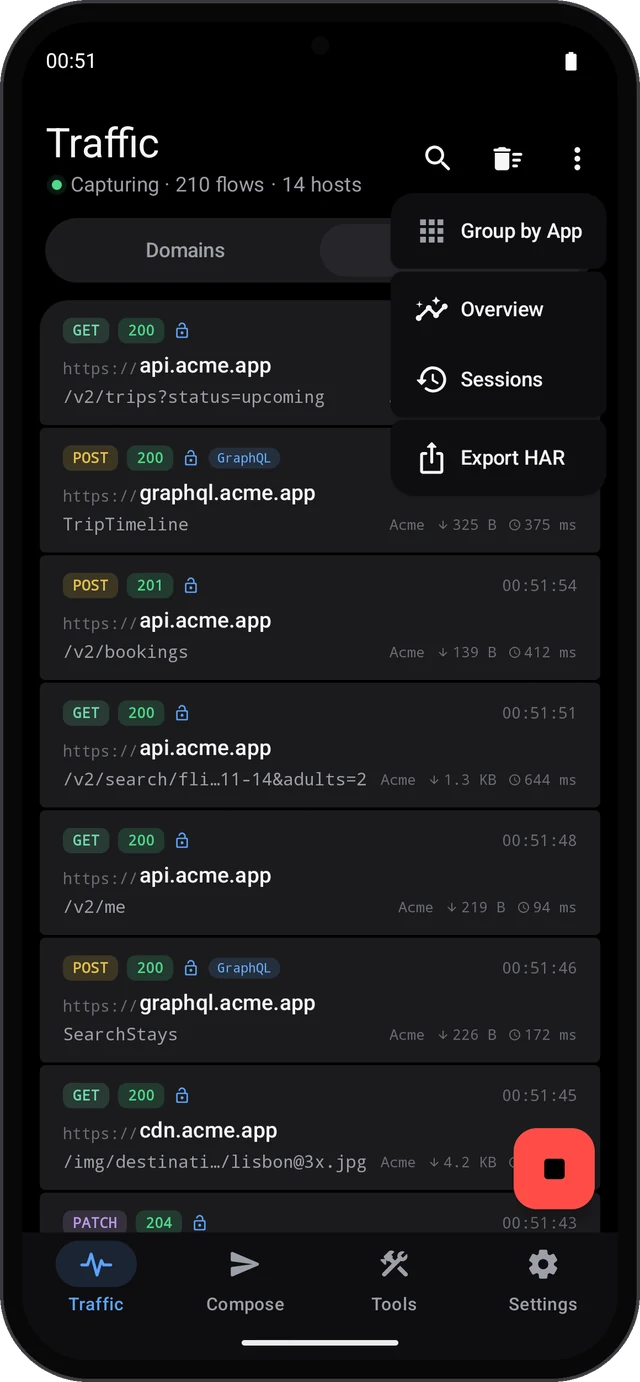
The round button at the bottom right of Traffic starts and stops capture. While it runs, the title line reads Capturing with the number of flows and hosts, a key icon shows in the status bar, and the WireLens notification has Stop and Open. You can also start and stop from the status card in Settings, from a Quick Settings tile, or from the app icon's long-press shortcuts.
Domains, Apps and Requests#
- Domains groups traffic by host, with the app that used it and a request count. Tap a host for its requests.
- Apps replaces Domains when Group by App is on in the ⋮ menu: one row per app, then its domains and requests.
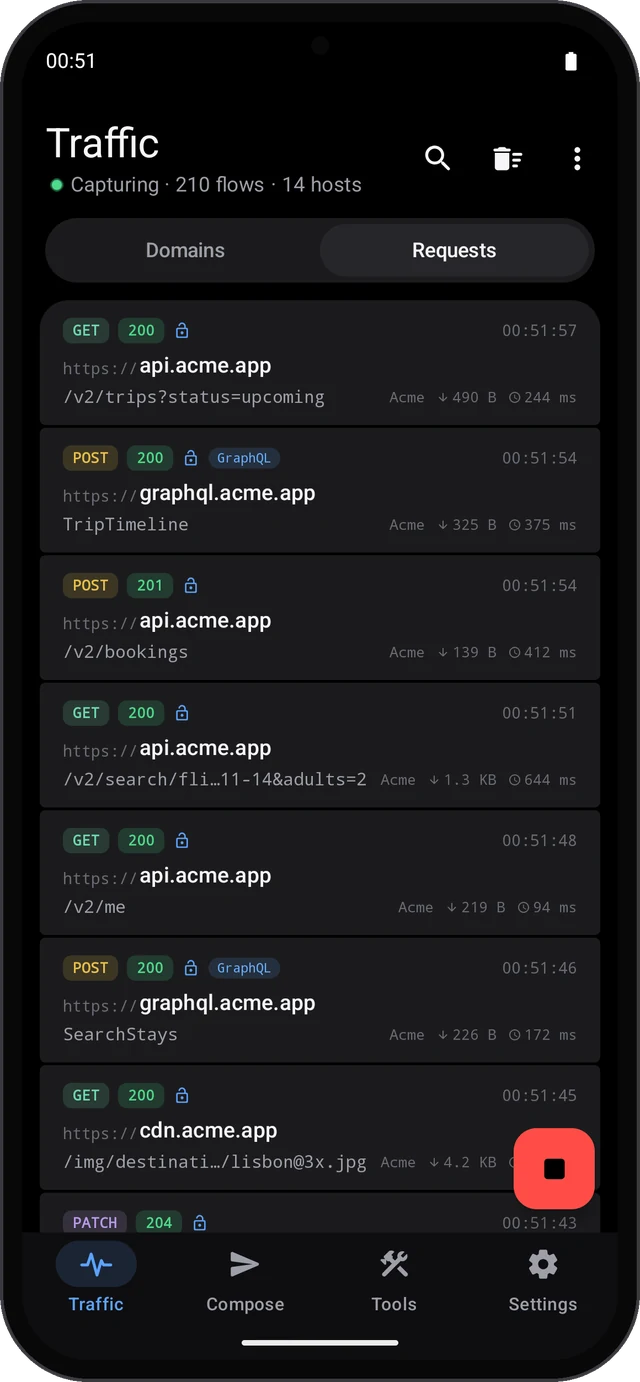
- Requests is the full timeline, newest first: method, status, URL, app, size and duration.
The magnifier opens search, and the filter chips narrow the list to Errors, Decrypted, a method, a status or an app. The ⋮ menu also has Overview (flows, hosts, errors, data transferred, the status mix, top hosts and the slowest requests), Sessions and Export HAR. The bin icon clears the list, with Undo if you change your mind.
Choose what to decrypt#
HTTPS hosts start out tunnelled: you see where an app connects, when, and how much it sent, but not the requests inside. Long-press a host, in either list, and choose Enable SSL Proxying. The next requests to that host arrive decrypted. Don't Decrypt Host in the same menu takes it off the list again.
Every host you decrypt is listed in Tools ▸ SSL Proxying, where you can also add hosts and wildcards by hand. See SSL Proxying.
Most apps other than browsers do not trust a certificate you installed, so their hosts stay tunnelled even when listed. See Things Android decides.
Read a request#
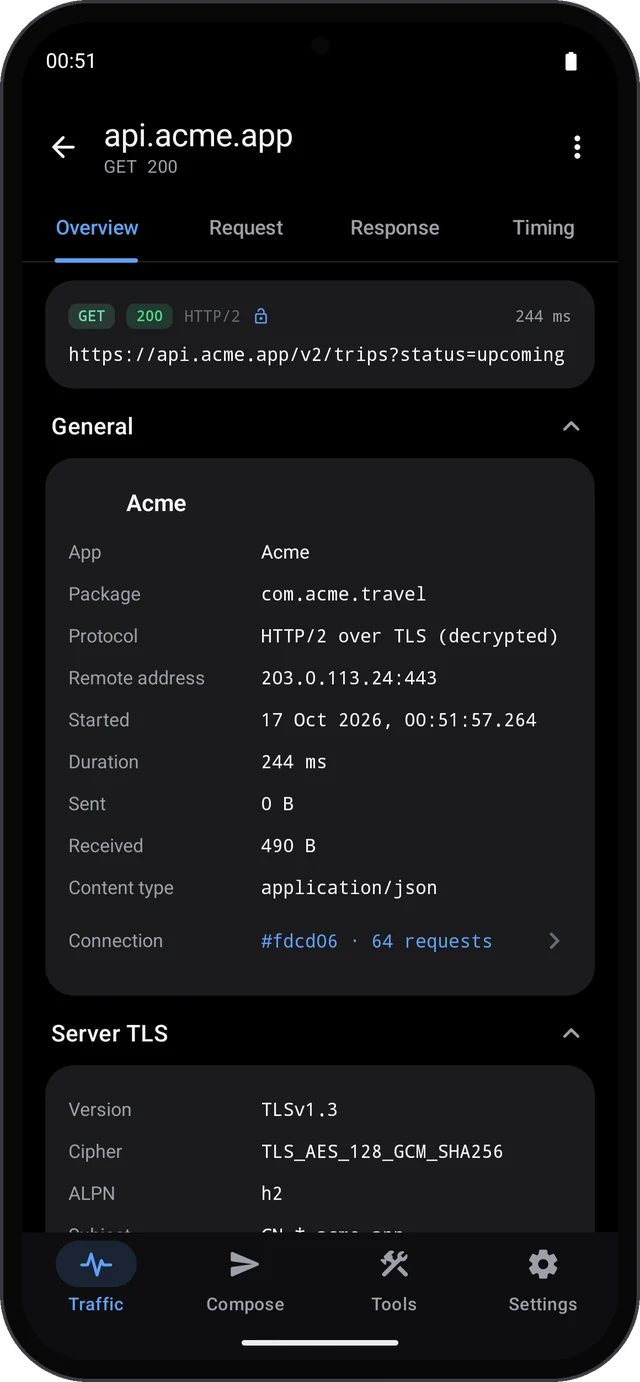
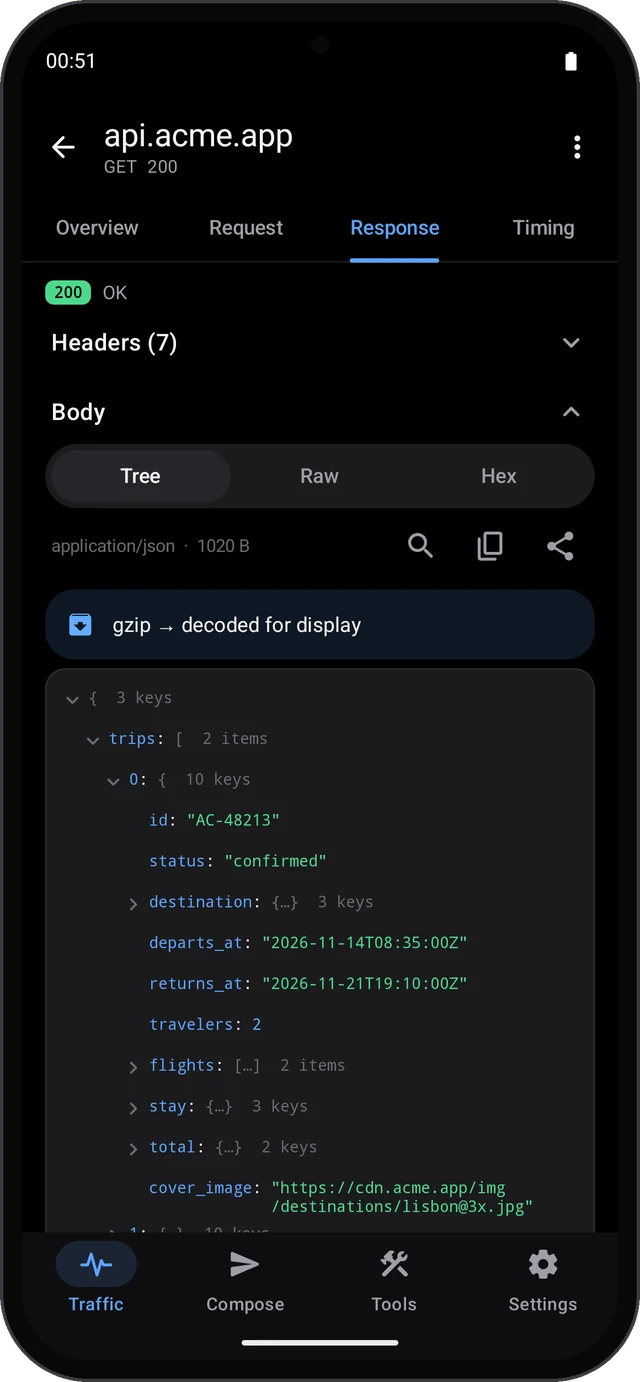
Tap a request to open it. Overview has the URL, the status, the protocol, the app and package that sent it and the server's address. Request and Response have the headers and the body; Timing breaks the exchange into its phases. WebSocket connections show a Messages tab with every frame.
Bodies open as a JSON Tree, as Raw text or as Hex. Compressed bodies are unpacked for reading.
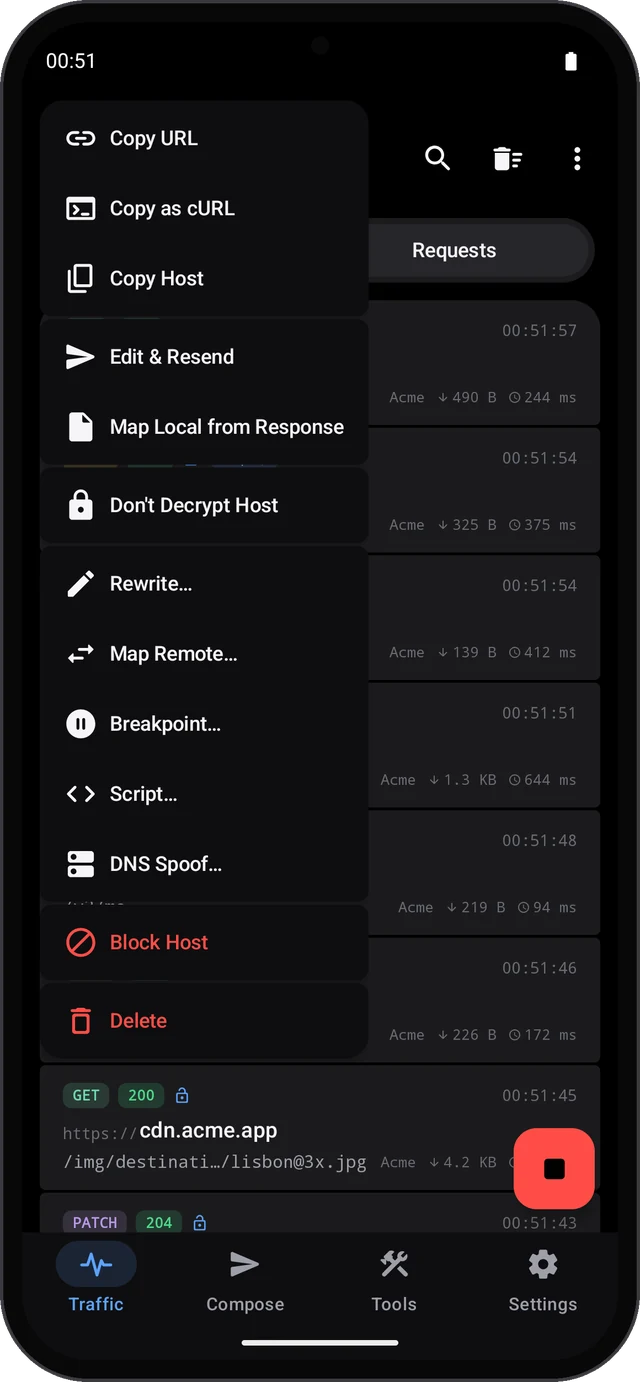
Long-press a request for Copy URL, Copy as cURL, Edit & Resend, Map Local from Response, and shortcuts that start a Rewrite, Map Remote, Breakpoint, Script or DNS Spoof rule for its host.
Change what apps see#
The Tools tab changes traffic on its way through:
| Tool | What it does |
|---|---|
| Breakpoints | Pause a request or a response, edit it, then send it on or abort it |
| Map Local | Answer a request with your own status, headers and body |
| Map Remote | Send a request to a different server |
| Rewrite | Change headers, query, status or body on matching traffic |
| Scripting | Run JavaScript on matching requests and responses |
| DNS Spoof | Point a hostname at another address |
| Block List | Make a host unreachable |
| Network Conditions | Add latency, cap bandwidth or go offline |
| No Caching | Asks servers for a fresh response every time |
| Apps | Capture only the apps you pick, from the next start |
Breakpoints from the notification#
When a breakpoint pauses a request, WireLens posts a notification that counts down to the rule's timeout, with Continue, Abort and +1 min. Answer it there to keep the app you are testing in front, or tap the notification to open the editor and change the request first. Paused requests are also listed in Tools ▸ Waiting Breakpoints.
Sessions and sharing#
Every capture run is saved as a session. Settings ▸ Sessions, or Sessions in the Traffic menu, lists them with search: rename one, delete it (with Undo), open it in Traffic, or share it as a HAR file. While you look at an older session, a banner offers Live to go back to the current capture.
Export HAR in the Traffic menu writes the current capture as a HAR file that WireLens for Mac and other tools open. With a Team Cloud key, Share to Team Workspace sends it to your Team Workspace.
Settings worth knowing#
- Certificate: the certificate's status, name, expiry and fingerprint, Install on this device, Share certificate, and Renew certificate.
- Appearance: Dark (the default), Light or System, and the app's language.
- Danger Zone: Clear Captured Traffic and Reset Rules to Defaults.
- Debug Log and Contact Support for when something goes wrong.
Something here is unclear, or wrong for your setup? Contact support or write to support@wirelens.app.