Using WireLens on iPhone and iPad
A tour of WireLens for iPhone after setup: capture, the Domains and Requests lists, choosing which hosts to decrypt, reading a request, the tools and sessions.
This page picks up where setup ends. The same tour is in the app: Show Me Around at the end of setup, or Settings ▸ How WireLens Works at any time.
The four tabs#
| Tab | What is there |
|---|---|
| Traffic | The live capture, as Domains or Requests, with the capture bar at the bottom |
| Compose | Build a request, import a cURL command or a Postman collection, or edit and resend one you captured |
| Tools | The Setup Guide, SSL Proxying, Block List, DNS Spoof, Rewrite, Map Local, Map Remote, Scripting, No Caching, Breakpoints, Waiting Breakpoints and the HTTP/3 switch |
| Settings | Pro, the body capture limit, Capture on Mac, the Setup Guide and tour, appearance and language, the certificate, and the Danger Zone |
Start and stop capture#
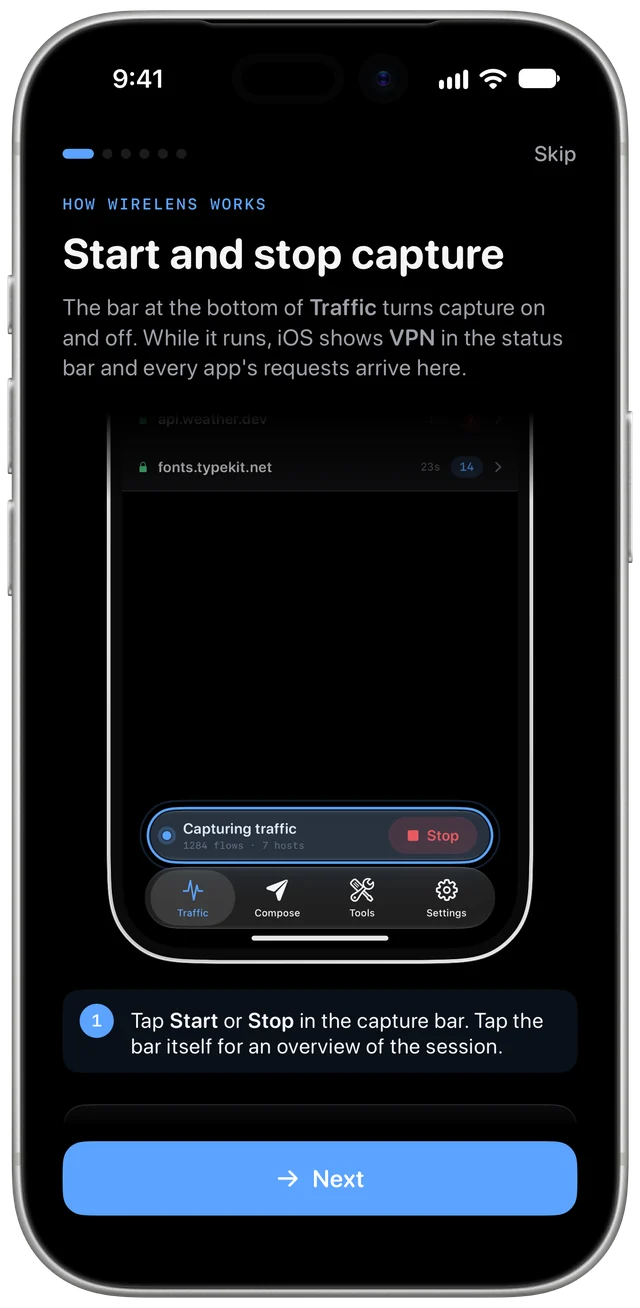
The bar at the bottom of Traffic starts and stops capture. While capture runs, iOS shows VPN in the status bar and requests from every app arrive in the list. Capture keeps running in the background until you stop it. Tap the bar itself for an overview of the session: request counts, the status mix, the busiest hosts and the slowest requests.
Domains and Requests#
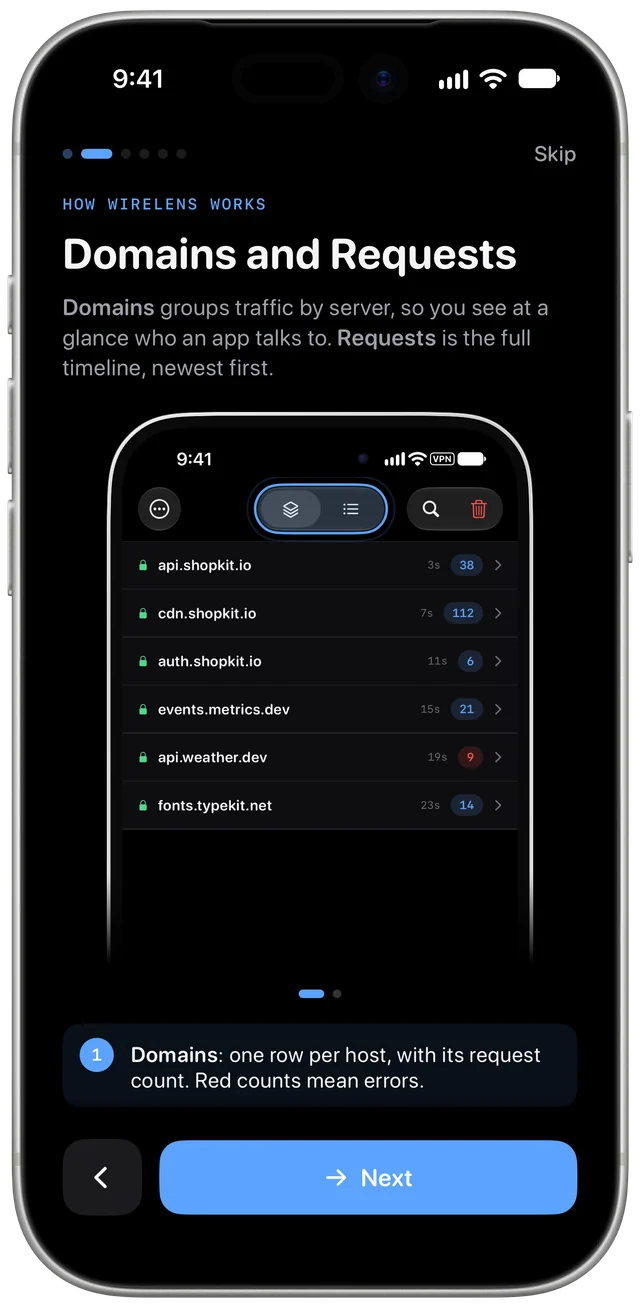
- Domains groups traffic by server: one row per host, with how long ago it was last seen and its request count. Tap a host to see its requests.
- Requests is the full timeline, newest first: method, status, host, path, size and duration for every request.
The magnifier at the top opens search and filters. Search matches the host, path, method and status. The chips narrow the list to Errors, 4xx, 5xx, Failed, Decrypted, GraphQL, Images, WebSocket or Video, then by Method and Status; Scopes filters by host and path, a header, the body, the content type, duration or size.
Choose what to decrypt#
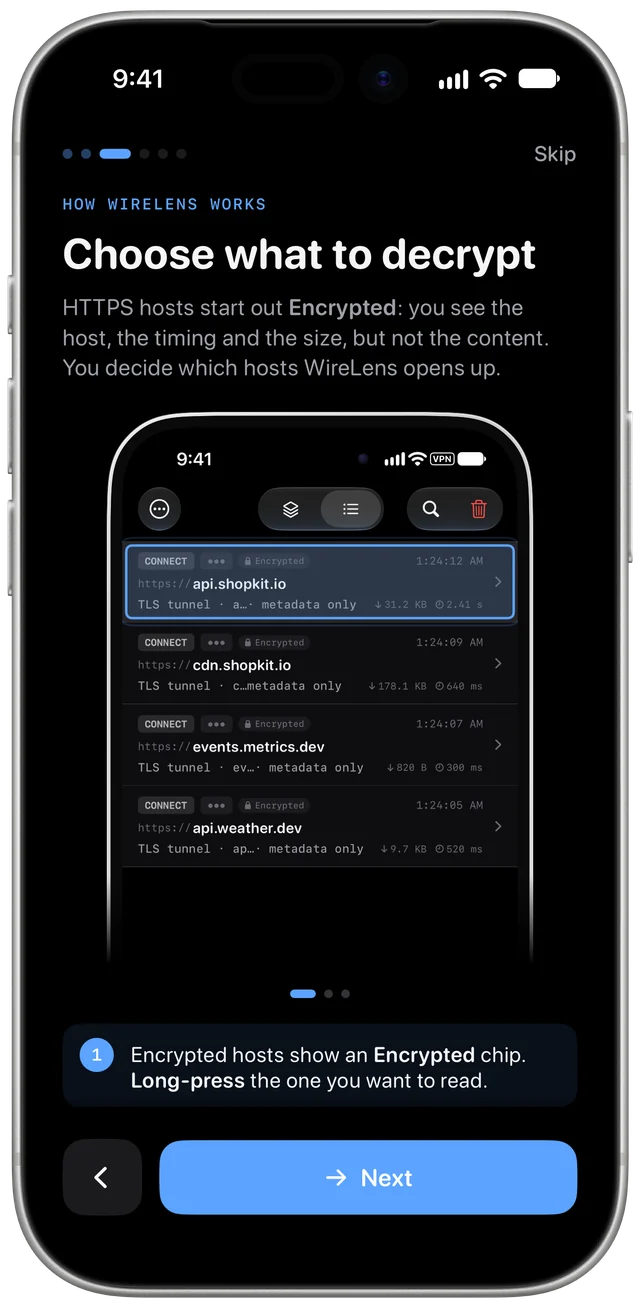
HTTPS hosts start out Encrypted. Their rows show CONNECT and an Encrypted chip: you see the host, when the connection opened, how long it lasted and how much it carried, but not the requests inside. You choose which hosts WireLens opens up.
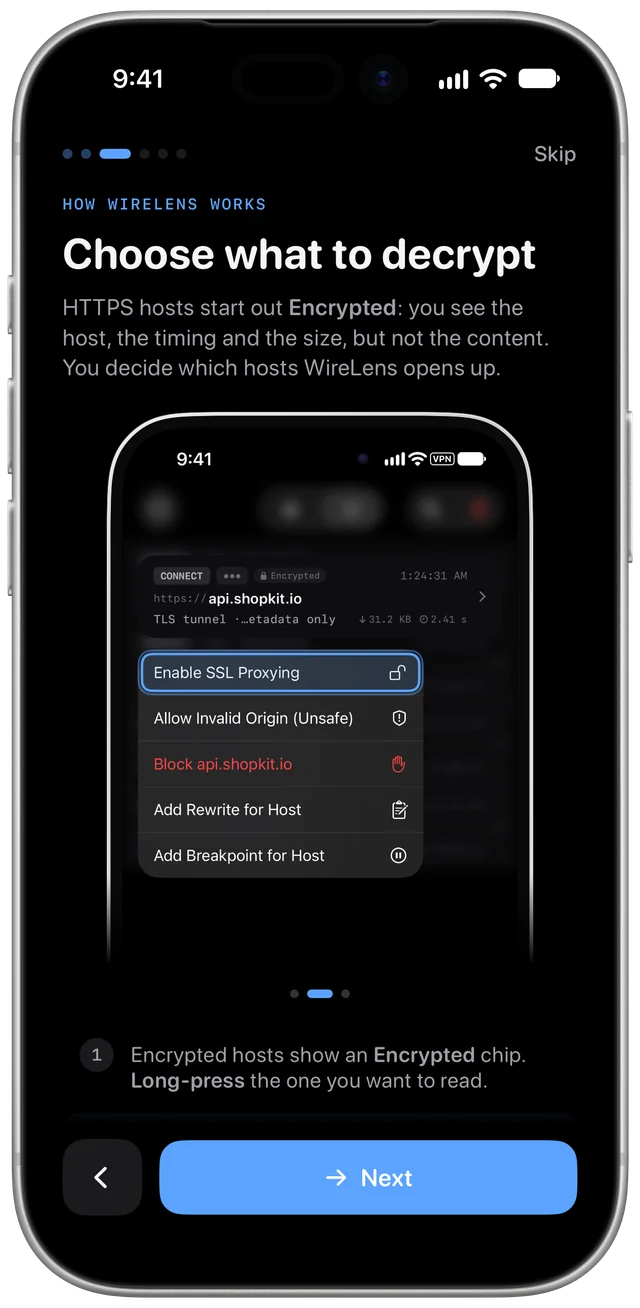
- Long-press the host, in either list.
- Choose Enable SSL Proxying.
- Use the app again. The next requests to that host arrive decrypted, with a method, a status and a body. Nothing needs restarting.
Opening an encrypted request offers the same Enable SSL Proxying button at the top. Every host you decrypt is listed in Tools ▸ SSL Proxying, where you can also add hosts and wildcards by hand. The free plan decrypts two hosts at a time; Pro removes the limit and adds *, which decrypts every host except the ones you exclude. SSL Proxying covers the lists in detail.
Read a request#
Tap a request to open it. Overview has the host, port, path, HTTP version, start and end times and sizes; Request and Response have the URL, headers, query parameters, cookies and the body; Timing breaks the request into its phases. WebSocket connections show Overview, Messages and Timing: every frame in both directions.
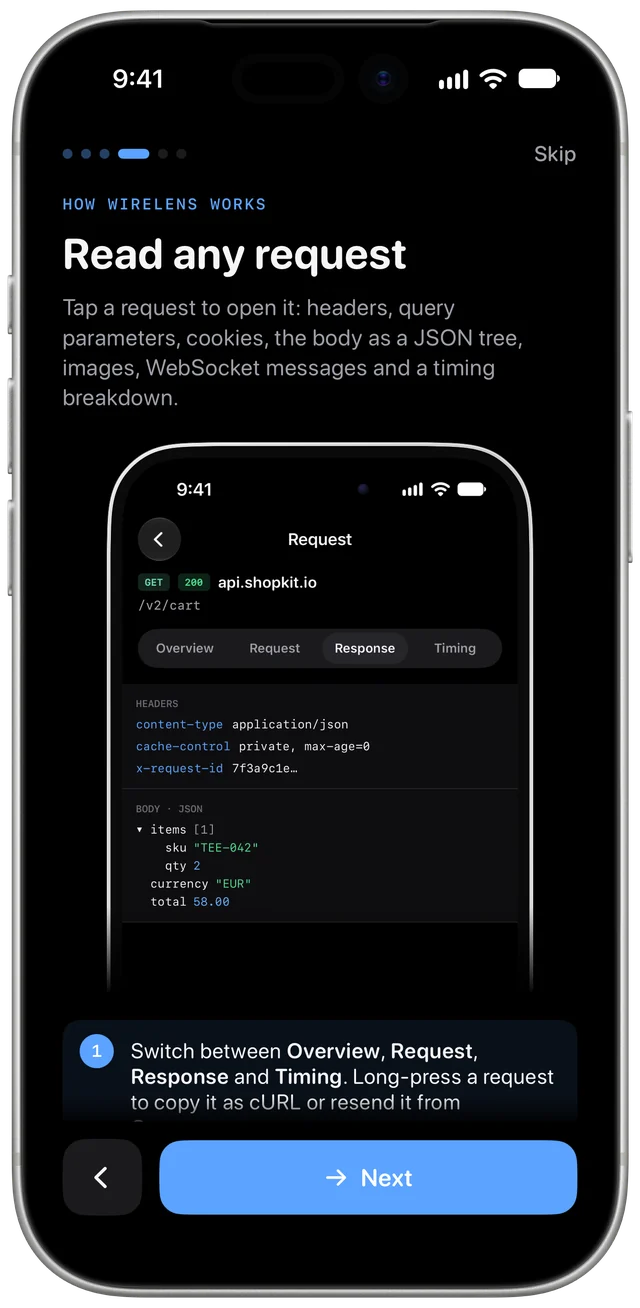
JSON bodies open as a tree you can fold, images show as images, and tokens and cookies are decoded where they appear. Long-press a request in the list for Copy as cURL, Copy URL, Edit & Resend and Map Local from Response; the ⋯ menu inside a request adds Export HAR Entry, Repeat, Breakpoint This URL and Share Body. The inspector has the details.
Change what apps see#
The Tools tab changes traffic on its way through. Each tool matches a host or a URL pattern.
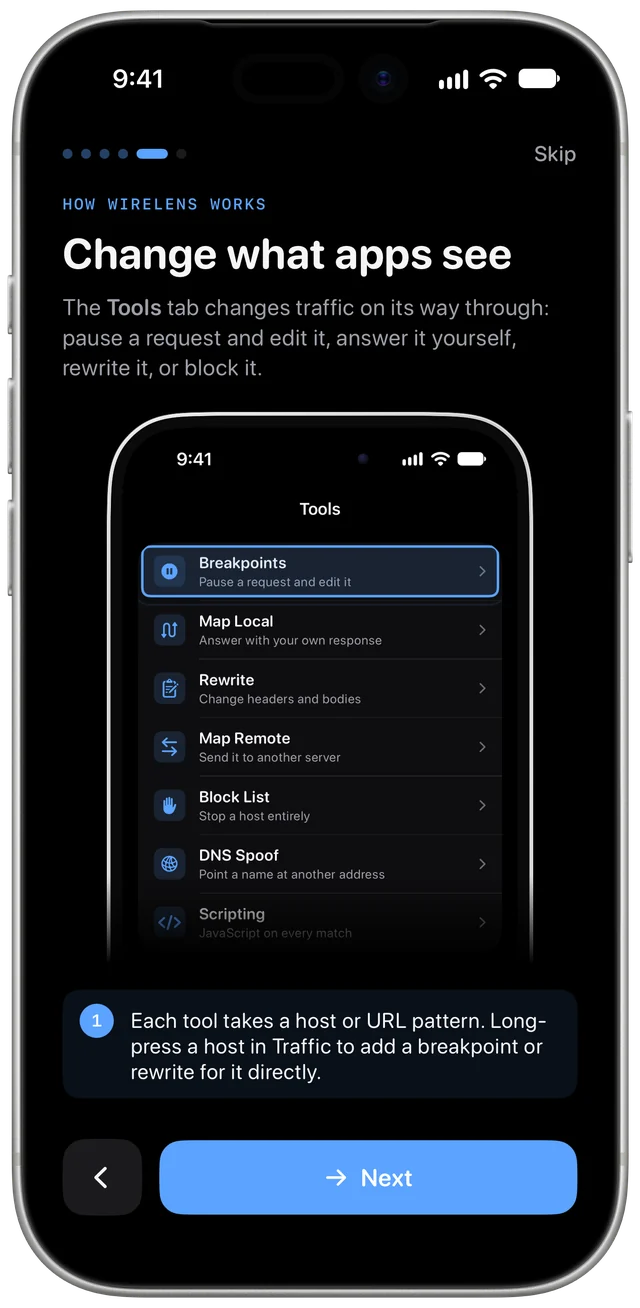
| Tool | What it does |
|---|---|
| Breakpoints | Pause a request or a response, edit it, then send it on or abort it |
| Map Local | Answer a request with your own status, headers and body |
| Map Remote | Send a request to a different server, such as staging |
| Rewrite | Change headers, query, method, status or body on matching traffic |
| Scripting | Run JavaScript on matching requests and responses |
| DNS Spoof | Point a hostname at another address for every app |
| Block List | Make a host unreachable |
Long-press a host in Traffic for Block, Add Rewrite for Host or Add Breakpoint for Host. When a breakpoint pauses a request while you are in another app, WireLens sends a Time Sensitive notification with Execute, Abort and +1 min; tap it to edit the request first. Paused requests wait in Tools ▸ Waiting Breakpoints.
When an app stops loading#
Some apps accept only their own certificate. This is called certificate pinning, and a pinned app refuses to load while its host is decrypted. WireLens marks those connections Pinned, and after two refusals it stops decrypting that host by itself. The app then loads again. You still see the host and its timing.
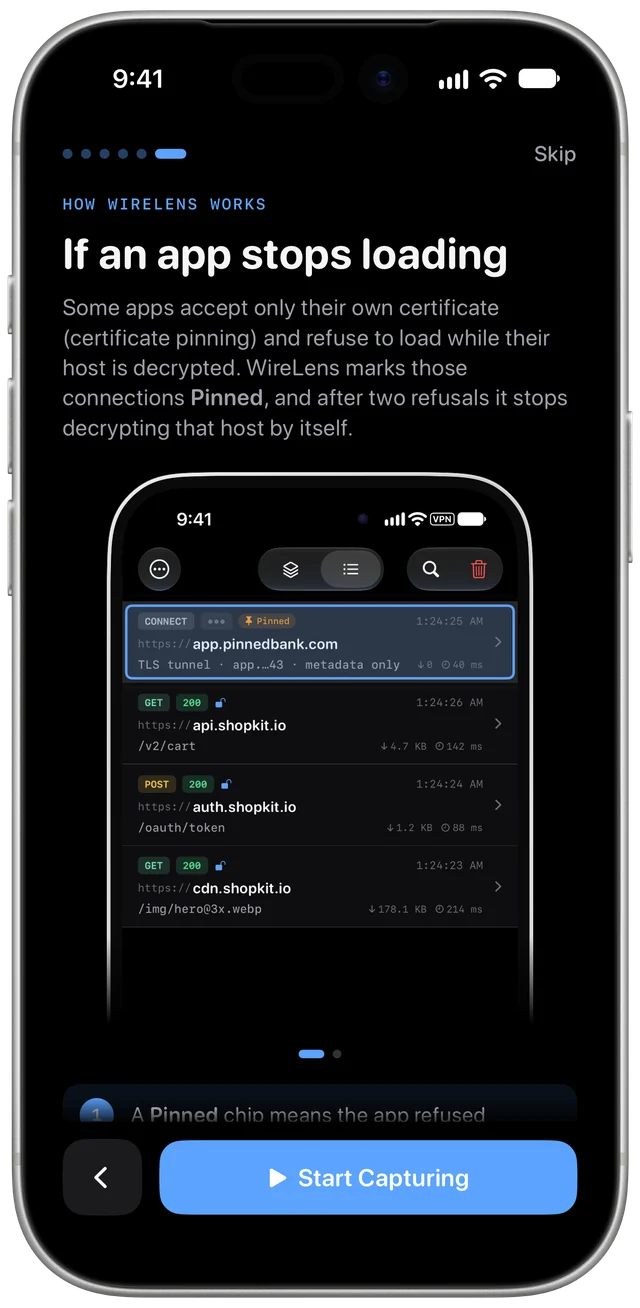
To stop decrypting a host yourself, long-press it and choose Disable SSL Proxying. The automatic part is Tools ▸ SSL Proxying ▸ Auto-passthrough Pinned Hosts; turn it off when you are testing that your own app's pinning holds. See SSL Proxying.
Sessions and sharing#
Every capture run is saved as a session. In Traffic, the ⋯ menu has:
- Overview, the same summary as tapping the capture bar.
- Historical Sessions, to search, reopen, rename or delete an earlier run. Share Redacted Session shares one without
Authorization,CookieandSet-Cookie. - Export Session HAR, a HAR file for any tool that reads them.
- Share Session to Mac, a
.wirelenspackage that WireLens for Mac opens as its own session, with every header and body intact (switch on Remove credentials to strip them). Send it with AirDrop or Files. - Share to Team Workspace, with a key that includes Team Workspace.
Sessions covers both apps.
Send your capture to a Mac nearby#
With WireLens on a Mac close by, the iPhone can stream its capture there, with no shared Wi-Fi needed. On the iPhone, open Settings ▸ Capture on Mac and turn on Discoverable. On the Mac, open Settings ▸ Remote Devices ▸ Nearby iPhones and click Connect. The iPhone asks Allow or Always Allow and shows a code to compare with the Mac. Remembered Macs are listed with Forget. See Capture other devices.
Set up again#
Settings ▸ Setup Guide shows each setup step with a check mark when it is done, and opens on the first one that is not. Use it after regenerating the certificate, after removing the profile, or on a new phone.
Something here is unclear, or wrong for your setup? Contact support or write to support@wirelens.app.