Install WireLens for Android
Install WireLens, put its certificate in Android Settings, allow the local VPN, and capture the apps on your phone.
WireLens for Android captures on the phone. No computer is involved, and no server of ours is in the path: WireLens reads the traffic on the phone and connects to the real servers from there.
What you need#
- Android 10 or later.
- A screen lock (PIN, pattern or password). Android requires one before it installs a CA certificate, and asks you to set one if you have none.
- A few minutes for the one-time setup.
Install#
Install WireLens from Google Play and open it. A few short pages explain what it does; the last one, Install the root certificate, holds the Setup Guide. Skip leaves it for later.
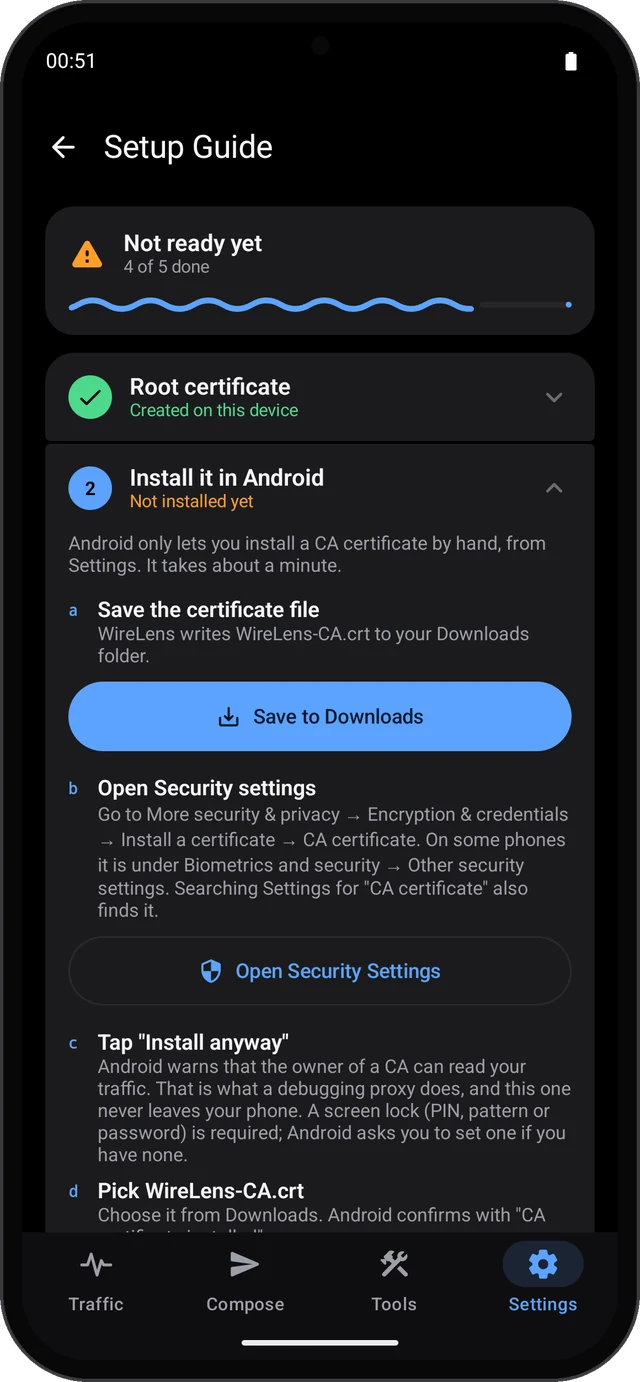
The Setup Guide is always in Settings ▸ Setup Guide, and as Setup Checklist at the top of Tools. It has five steps, says Not ready yet or Ready to read HTTPS, and ticks each step off by itself as you finish it.
Step 1: Root certificate#
WireLens makes its own certificate authority the first time it runs. The step shows Created on this device, the certificate's name and its fingerprint. The private key stays in WireLens and is never uploaded or backed up.
Step 2: Install it in Android#
Android only installs a CA certificate by hand, from its own Settings app:
- Tap Save to Downloads. WireLens writes
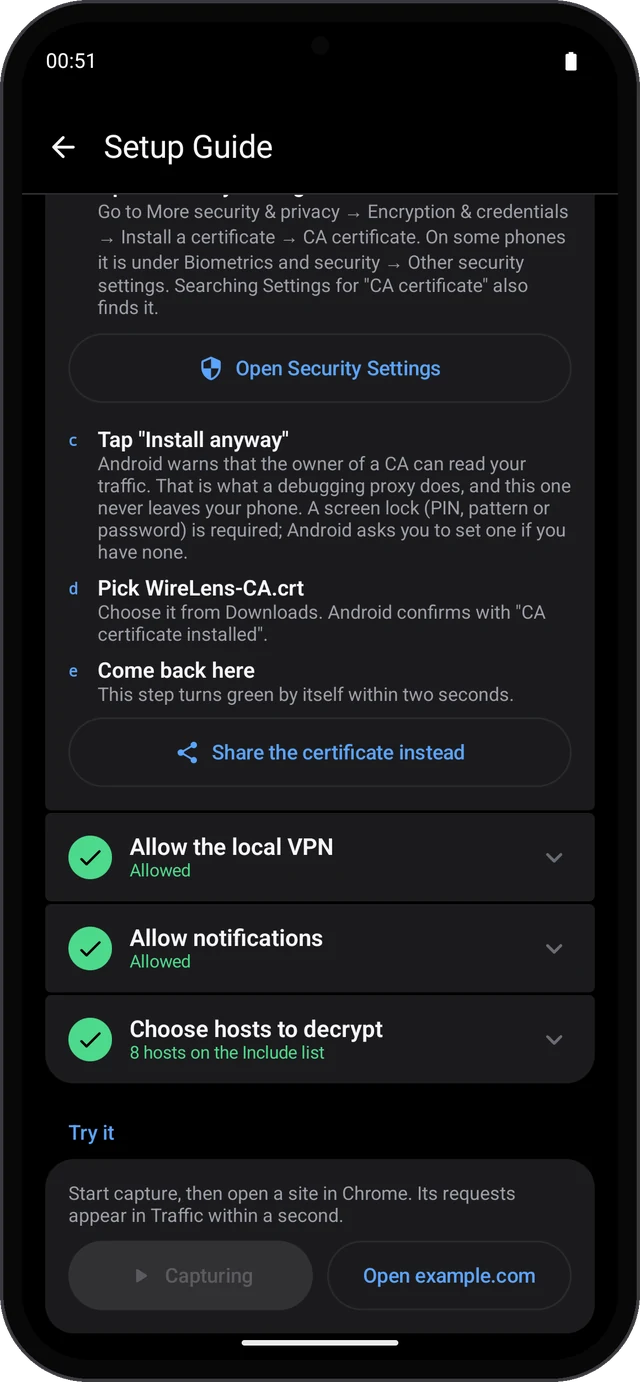
WireLens-CA.crtto your Downloads folder. - Tap Open Security Settings and go to More security & privacy ▸ Encryption & credentials ▸ Install a certificate ▸ CA certificate. On some phones it is under Biometrics and security ▸ Other security settings. Searching Settings for "CA certificate" also finds it.
- Android warns that the owner of a CA can read your traffic. Tap Install anyway.
- Pick
WireLens-CA.crtfrom Downloads. Android confirms with "CA certificate installed". - Come back to WireLens. The step turns green within two seconds.
Share the certificate instead sends the file with Android's share sheet, for example to install it on another device.
The WireLens root certificate has more, including how to remove it.
Step 3: Allow the local VPN#
Tap Allow VPN, and OK when Android asks whether WireLens may set up a VPN connection.
This is how Android lets an app see other apps' traffic. The VPN ends on the phone: traffic goes from your apps into WireLens and straight out to the servers they were talking to. While capture runs, a key icon shows in the status bar and a WireLens notification offers Stop and Open.
Step 4: Allow notifications#
Tap Allow Notifications. Capture status lives in a notification, and a paused breakpoint is answered from one, because Android closes the connections of an app you switch away from.
Step 5: Choose hosts to decrypt#
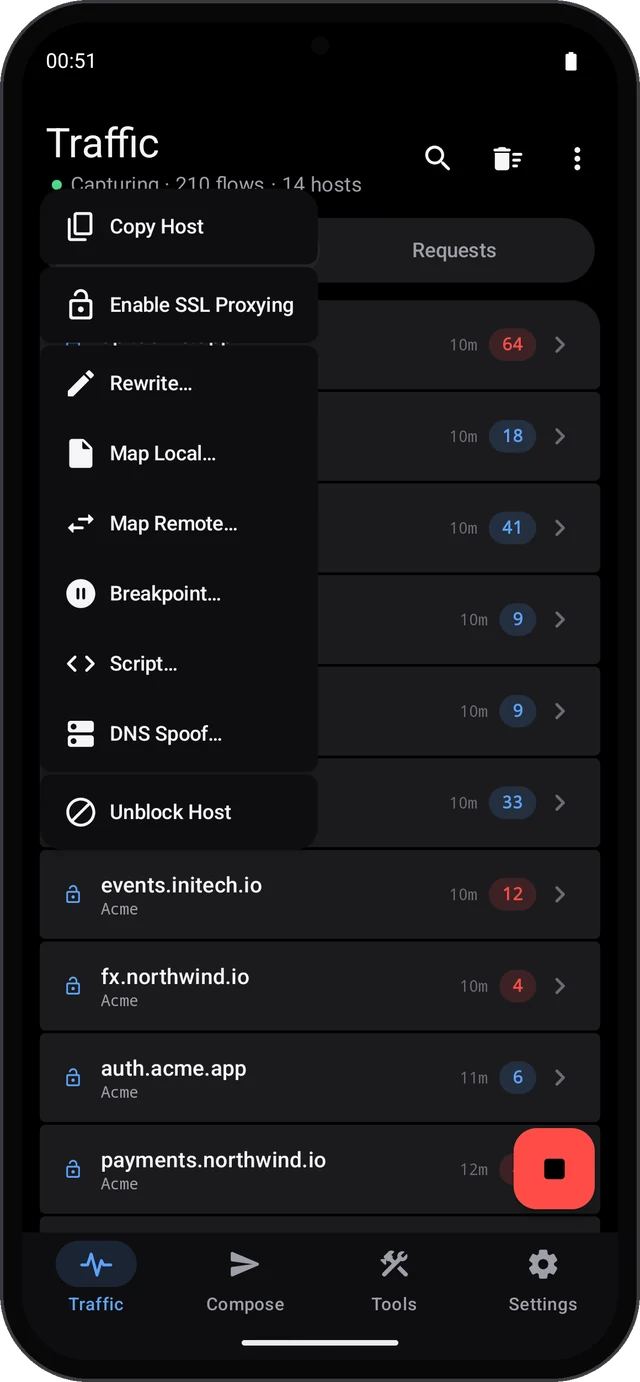
Only hosts on the SSL Proxying Include list are decrypted. Everything else is tunnelled untouched and shows as a connection: host, app, size and timing. Open SSL Proxying opens the list, but the quickest way to add a host is from the traffic itself:
- Start capture with the round button at the bottom right of Traffic, then use the app you want to look at.
- Long-press its host and choose Enable SSL Proxying.
- Use the app again. The next requests to that host are decrypted, with nothing to restart.
The free plan decrypts two hosts at a time. Pro removes the limit and adds * for every host.
Try it at the bottom of the guide starts capture and opens example.com in your browser, as a quick test.
Things Android decides#
-
Which apps can be decrypted. Since Android 7, an app trusts a certificate you installed only if its developer opted in. Browsers such as Chrome do. Most other apps do not, and their hosts stay tunnelled. For your own app, add a network security config to the debug build:
xml<!-- res/xml/ network_security_config.xml, debug source set --> <network-security-config> <debug-overrides> <trust-anchors> <certificates src="user" / > </trust-anchors> </debug-overrides> </network-security-config> and reference it from the manifest with
android:.networkSecurityConfig= "@xml/ network_ security_ config" -
Apps that pin their certificates refuse to be decrypted. With Keep apps working on in Tools ▸ SSL Proxying (the default), WireLens notices the refused handshake and passes that host through for that app. The app keeps working. See SSL Proxying.
-
HTTP/3 runs over QUIC. WireLens drops it by default, and apps fall back to HTTP/2 or HTTP/1.1 over TCP, which WireLens decrypts. Decrypt HTTP/3 (Experimental) in Tools decrypts it in place. See HTTP/2 and HTTP/3.
-
Other VPNs. Android runs one VPN at a time. Starting WireLens turns another VPN off, and starting another VPN stops WireLens capture.
-
Which apps are captured. Every app, unless you choose some in Tools ▸ Apps. A change there applies the next time capture starts.
Next#
Using WireLens on Android is a tour of the app after setup.
Pro on Android#
Capture, the traffic list, the inspector and sessions are free. Pro is an in-app purchase through Google Play, monthly, yearly or lifetime, and removes the limits on every tool; it also unlocks HTTP/3 decryption. To use it on another phone with the same Google Account, choose Restore Purchases on the Pro screen. A WireLens key bought for the Mac also unlocks up to two phones: on the Pro screen, tap Have a WireLens key? and Unlock with Key. See Licenses and activation.
Something here is unclear, or wrong for your setup? Contact support or write to support@wirelens.app.